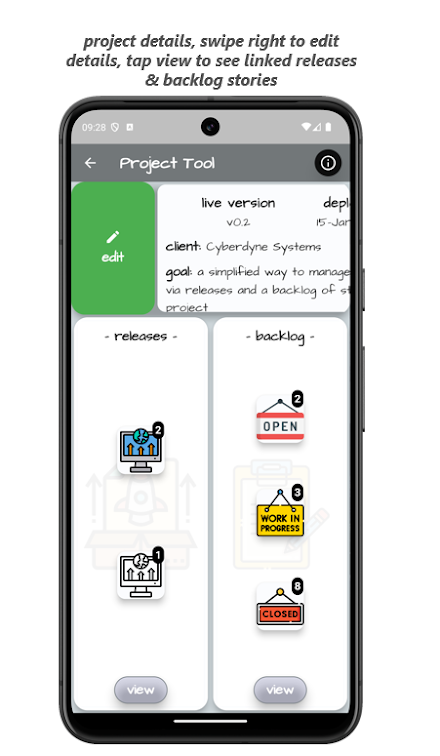
OVERVIEWThe aim of the app is to provide a simplified way to manage projects via releases & a backlog of stories.PROJECT HOMETap add to create a new project, on the create project dialogue, enter a project name, which is mandatory, optionally, you can enter a project goal.Swipe an existing entry to the right to edit the previously entered details or to view the project, swipe it to the left to delete the project and all associated releases & backlog stories.To pin / unpin a project double tap the trailing “pin” icon, to toggle a project between “active” & “inactive” double-tap the leading project image.PROJECT OVERVIEWThe overview page provides a summary of the project including details of the current live version, it’s deployment date and the project goal, it also shows a summary of the associated releases & backlog stories by status, to view the associated releases or backlog stories, tap the required view button.To edit the project summary details, swipe the summary to the right and tap the edit action.RELEASESTap add to create a new release, on the create release’ dialogue, enter a release name, all newly created releases default to a status of ‘not deployed’.Swipe an existing entry to the right to edit the previously entered details or to view linked stories, swipe it to the left to delete the release, associated backlog stories will be unlinked.To view linked stories, tap the link action which will show the currently associated stories, to maintain the list, tap the link icon.On the ‘linked stories’ dialogue, add additional stories via the drop-down or swipe stories already associated to the left to unlink them.To update the release status, double tap the leading status icon, to sort the list, tap the menu icon in the app bar.BACKLOG STORIESTap add to create a new story, on the create story’ dialogue, enter a story name, which is mandatory, optionally, you can enter the story details, all newly created stories default to a status of ‘open’.To add the “default” backlog stories, tap the add button, on the create story’ dialogue, toggle the “add default backlog stories” switch accordingly.To add a story to or remove it from a release, toggle the “add to release?” switch accordingly, if adding to a release, select the required release from the drop-down.Swipe an existing entry to the right to edit the previously entered details or to duplicate the story, swipe it to the left to delete the story.To update the story status, tap one or more story status icons to reveal the available status, long-press and drag the stories onto the required status.To filter the list by status, tap the filter icon to show the filter criteria, to sort the list, tap the menu icon in the app bar.To filter / not filter the list by a given release, double tap the release name on the backlog story card.SETTINGSFrom the setting home page, by tapping "maintain default stories", you can create a set of "default" backlog stories which can be added to any project backlog.Tap the add button to create a new entry, swipe an entry to the right to edit the details and to the left to delete it.Changes made to "default" backlog stories will NOT be reflected on any project using them.By tapping "maintain clients", you can create clients which can be added to any project.Tap the add button to create a new entry, swipe an entry to the right to edit the details and to the left to delete it.REPORTSFrom the reports page, you can either view information for each project or each client & their associated projects, use the end drawer to switch between either project or client.Icons used in this app are made by https://www.freepik.com
About Project Tool
Package name (App ID)
dev.mseejay.project_tool
Available on
Google Play
Price
Free
Developer
mseejaydev
Looking for the Project Tool APK?
The safest way to get Project Tool (dev.mseejay.project_tool) on your Android
device is to install it directly from Google Play — you'll always get the
latest official version, automatic updates, and no risk of modified or
infected APK files from third-party sites.

Features
🍽️
Food & Dining
Discover recipes and order food from your favorite restaurants.
📰
News & Updates
Stay informed with the latest news and updates.
🏠
Smart Home
Control and monitor your home with smart features.
Screenshots
See Project Tool in Action
FAQ
Frequently Asked Questions
Is Project Tool free?
Yes, Project Tool is free to download and install on Android through Google Play.
How do I install Project Tool on Android?
Open Google Play on your Android phone or tablet, search for Project Tool by mseejaydev or tap the Google Play button on this page, then tap Install. The app downloads and installs automatically.
What is dev.mseejay.project_tool?
dev.mseejay.project_tool is the App ID (package name) of Project Tool on Google Play. Every Android app has a unique package name, and it is the safest way to verify you are installing the official app.
Is Project Tool safe to download?
Installing Project Tool from Google Play is the safest option: you get the official version published by mseejaydev, verified by Google Play Protect, with automatic updates. Avoid APK files from unofficial third-party sites.
Get Project Tool Today
Project Tool for Android — free download on Google Play.
Compatible with Android phones and tablets — available on Google Play.
Love this app?
Share it with friends and family on your favorite social network.
Ask AI about this app
Get instant answers about features, tips and more from popular AI assistants.